Keyboard Shortcuts You Must Know (Premiere Pro Tutorial)
 Jordy Vandeput
20K views
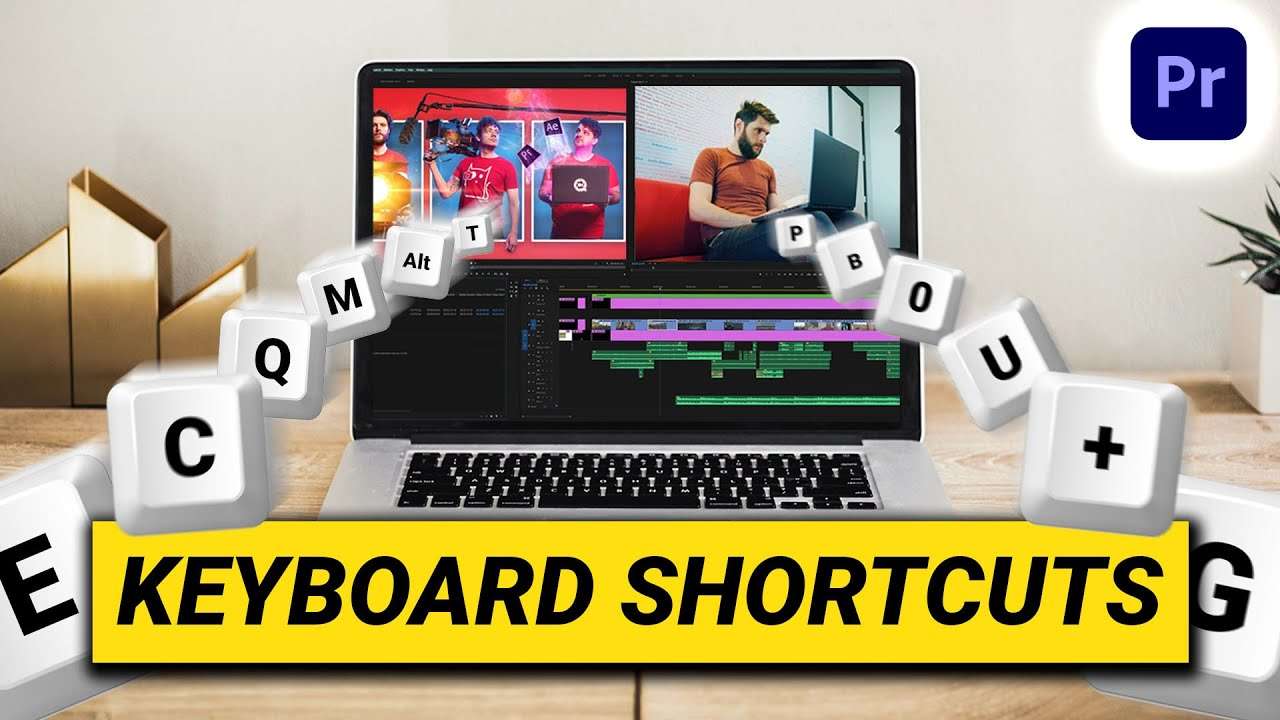
Learn about the most useful keyboard shortcuts to drastically make your editing workflow way quicker in this Adobe Premiere Pro tutorial.
Speed up your editing workflow with keyboard shortcuts
As a filmmaker or editor we want a fast and efficient workflow. We often work for school or clients and need to finish our deadlines on time. So having the right keyboard shortcuts to your disposal helps out a lot.
Adobe Premiere Pro has already provided us with a lots of shortkeys that are default. But when you head over to the Edit menu and select 'Keyboard Shortcuts' you can alter these or set new ones.
Some of the most effecient shortkeys to use
I use a lot of the default shortkeys but I do recommend to alter some of them. The 'Add Edit' shortkey for example is CTRL + K. That means that I have to press two keys in order to make that cut. I simply replaced that function with the C key (which is normally the 'Razor Tool') and that way I only have to press one key to cut my video. This increases the workflow by just a few seconds but in the end everything will go way faster this way.
Another thing I often do is assign keys to actions that I normally have to perform some clicks for. For example if I want to nest a clip or scale it to the frame size. Normally I would have to right click on my clip and then browse in that pop up until I find it. But if I simply assign a key to those actions I only have to use one key.
Of course this all depends on how you like to edit and customize those keys. In the office we're currently with 4 people and each of us has a different keyboard layout when it comes to shortcuts. The good thing is that we can save these in Premiere Pro so that if someone used someone elses project or their pc, we can simply swap the keyboard layout to that from ourselves.
Storyblocks
Althought we're not sponsored on this channel by Storyblocks I do use their library a lot. For me it's basically a shortcut to getting certain types of shots or assets that I can't immediately shoot. For instance aerial shots or certain portrait shots. Assets like dust overlays, light leaks and more are things that I would normally put a lot of hours in when I try making those myself. So by downloading them from Storyblocks I speed that up a lot. I also discovered that Storyblocks has a variety of Premiere Pro templates now. That's easy because I can simply download a transition pack or lower thirds if I don't have to time to make these myself. And the best part is that I only have to pay one prize for unlimited downloads.
Jordy Vandeput
Founder of Cinecom · 2.75M+ subscribers on YouTube
Jordy Vandeput is a Belgian filmmaker who has taught practical filmmaking to millions through Cinecom. He breaks professional techniques down into clear, repeatable steps you can use on your very next project.

0 comments