5 shortcuts in Adobe Premiere Pro you must use
 Jordy Vandeput
333K views
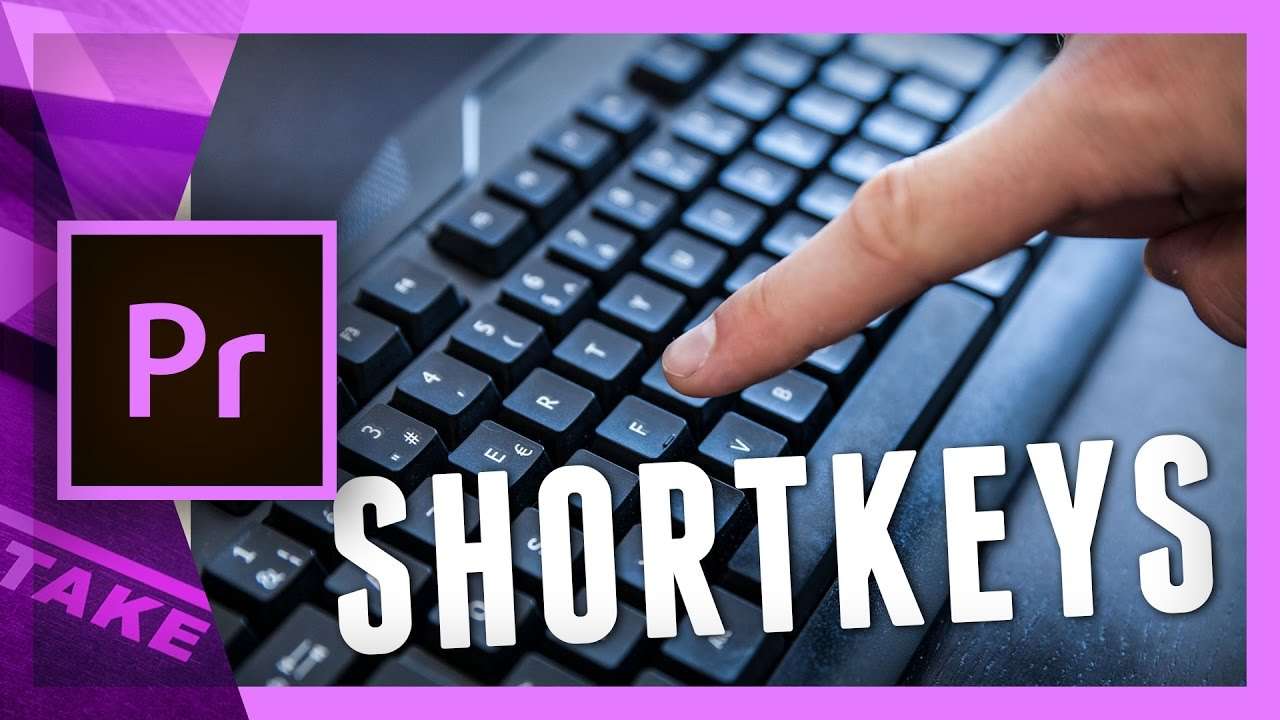
Learn how to use some more unpopular shortcuts in Adobe Premiere Pro that will enhance your video editing workflow a lot better.
Shortcuts or short keys allow you to edit a lot faster and more accurate. The more shortcuts you use, the better a workflow can be. But of course it's not so convenient to learn all the hundreds of shortcuts, so that's why we've picked out 5 actions which will enhance your workflow a lot more.
We start with a very nice shortcut that does multiple actions with one press of a button. To trim off the beginning of a clip you need to press Q. It will not only remove the first piece before your play head but also close the gap. The same goes for the last part, which you need to press W for.
The next shortcut is something we need to create first. From the keyboard shortcuts menu we can assign one for "Bypass Lumetri Color Effects". When holding down that key you can see the before and after from your color grading.
Often looking for a clip you already used? You could search your project window, but there's an easier way. Just select the desired clip form your timeline and press the shortcut F. It will open the source clip inside the source monitor form which you can select a new part now.
The fourth shortcut is a combination of the Alt + arrow keys. This will nudge your clips within time or even within different channels. It's much more accurate than using your mouse. To nudge by bigger steps also hold down the shift key when doing so.
And finally we'll have a look to faster zoom and scroll through your timeline. You can simply use your scroll wheel to scroll, but you can also hold the Alt key while doing so to zoom in your timeline. The action will follow the position of your mouse pointer.
Jordy Vandeput
Founder of Cinecom · 2.75M+ subscribers on YouTube
Jordy Vandeput is a Belgian filmmaker who has taught practical filmmaking to millions through Cinecom. He breaks professional techniques down into clear, repeatable steps you can use on your very next project.
Related tutorials
 645K
8:45
8 A.I. Tools Video Editors Need To Use
Learn how to use different A.I. tools to enhance your Video Editing Workflow in this tutorial video.
 166K
6:49

5 Steps to EDIT a PRO TRAILER in Adobe Premiere Pro
Learn how to edit a professional movie trailer in Adobe Premiere Pro like Hollywood in these 5 simple steps using Adobe Premiere Pro.
 90K
9:36
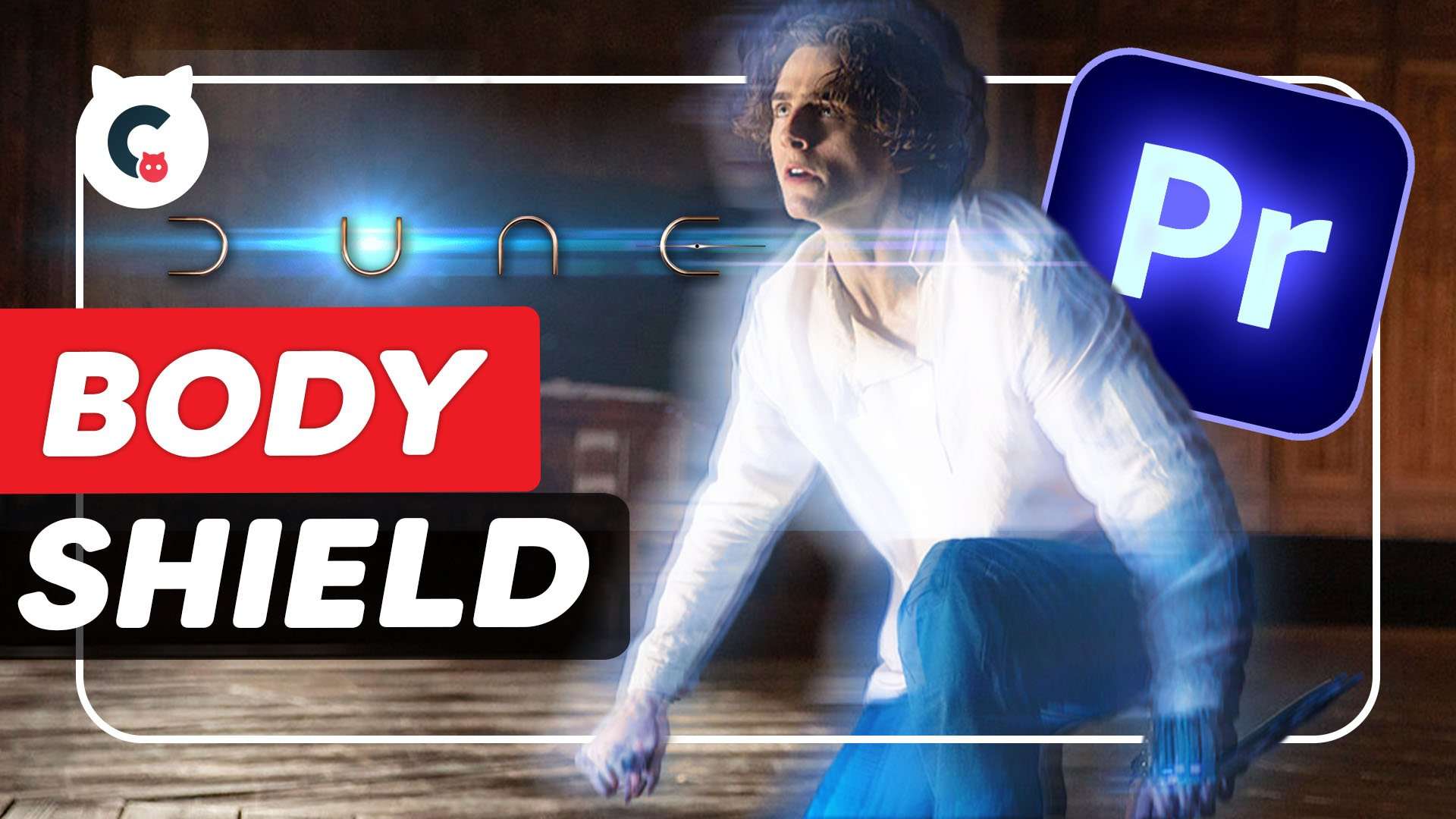
Body Shield Effect From Dune in Adobe Premiere Pro
Learn how to create the glitch body shield effect upon impact from Dune (2021) movie in this Adobe Premiere Pro tutorial video.
1 comment
Very good. Every now and then as I improve in Premiere Pro I re-watch one of your tutorials and get even better. Wish you would do a few on making intros/outros. I'm making a church video and need to do something nice for stewardship videos to run in October. All the best! Dale Saylor :)