Closed Captions Subtitles in Premiere Pro Tutorial
 Jordy Vandeput
150K views
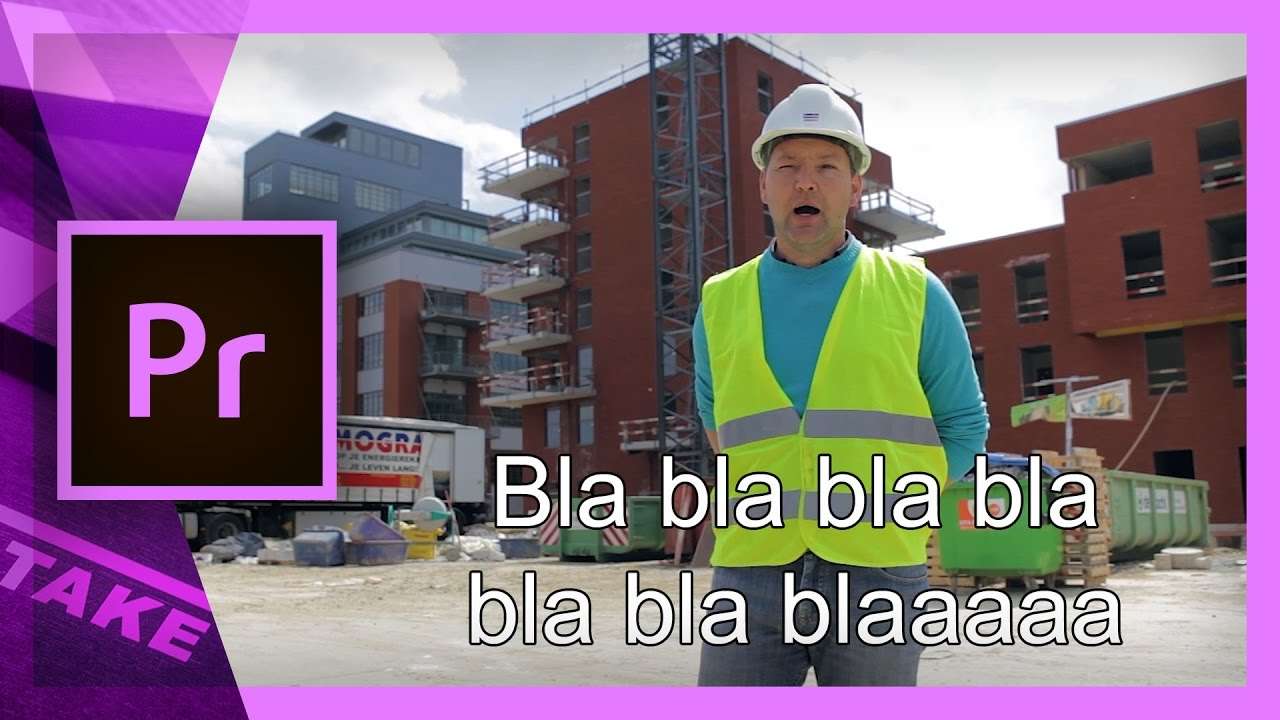
Create closed captions subtitles in Adobe Premiere Pro that allow multiple languages for Youtube or DVD. Enable or disable the subtitle track.
Closed captions are subtitles on a separate track or file. This allows for many adjustments in the player. Such as disabling or enabling it, selecting multiple languages or even formatting the text font, color and size.
It's definitely the best way to go when you'd like to add subtitles to your video. In Premiere Pro we have a great editor that allows us to put the text onto the right place.
Once we're done we can use media encoder to export the video and the subtitles as two separate files. One of the more popular formats is a SRT format. You can test your subtitles easily with media player VLC.
Jordy Vandeput
Founder of Cinecom · 2.75M+ subscribers on YouTube
Jordy Vandeput is a Belgian filmmaker who has taught practical filmmaking to millions through Cinecom. He breaks professional techniques down into clear, repeatable steps you can use on your very next project.






2 comments
How do you ended multi language captions?
captions are still not showing up after enabling and updating the settings which match the type CEA-708