Editing 4K on a slow computer in Premiere Pro
 Jordy Vandeput
204K views
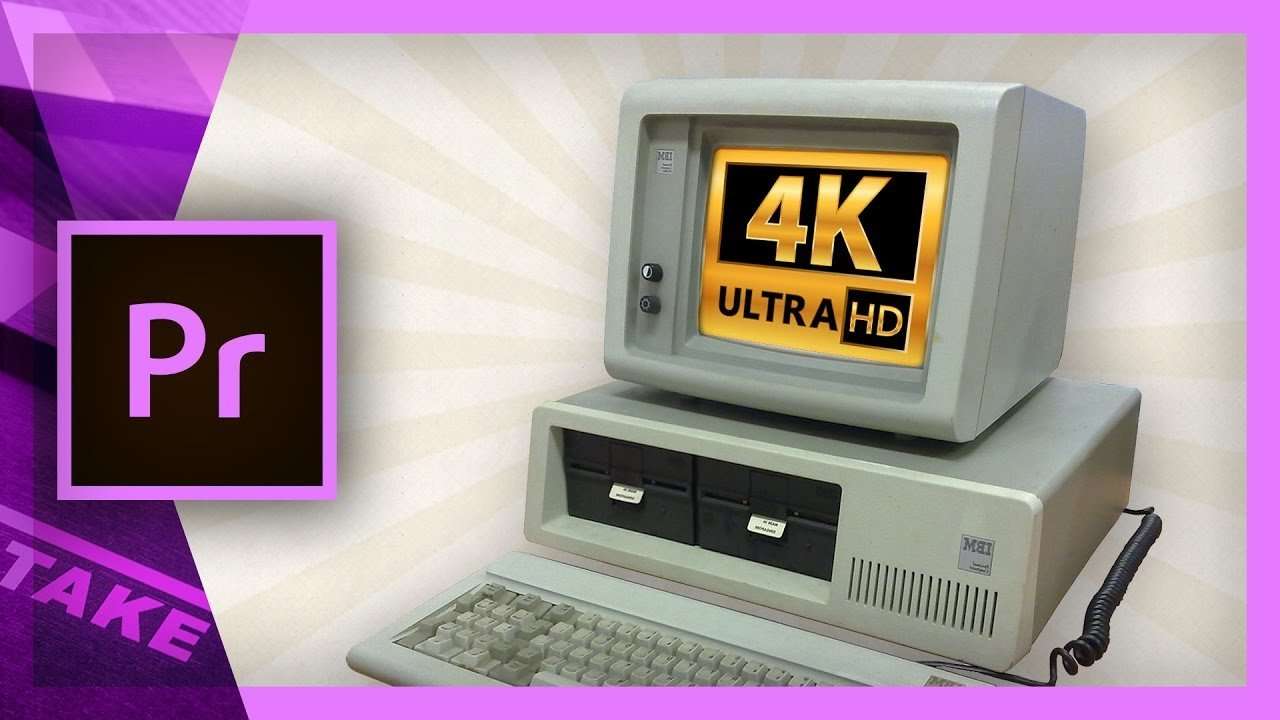
Slow computers and 4K video editing don't go together. But there's an option in Premiere Pro that creates low resolution proxies in a very fast workflow.
If you buy a new camera these day, chances are pretty big it can shoot 4K. A wonderful and super sharp resolution that we must embrace. But the downside is in the editing. 4K video files require a lot more resources and if you have an old or slow computer, it might not edit so fluent.
The solution to this problem is to work with proxies. This is nothing new, but the workflow in the latest Adobe Premiere Pro update is. Essentially you'll transcode your 4K clips into low resolution videos which you'll use in the editing. These lower resolution clips are called proxies. Once you're done editing you replace everything back with the original 4K clips.
Adobe Premiere Pro made it so easy that it will do all of these steps in the background. When creating a new project you can locate the 'ingest settings' tab, from which you can enable to work with proxies. Once you've done that you can important you 4K files and start editing. In the background the media encoder will create proxies.
From the program monitor we can then add a new button which allows us to go back and forward between the proxy file and the 4K clip. So with just one clip on a button we can change the source clips, allowing us to edit faster and export to 4K without all the hassle.
Jordy Vandeput
Founder of Cinecom · 2.75M+ subscribers on YouTube
Jordy Vandeput is a Belgian filmmaker who has taught practical filmmaking to millions through Cinecom. He breaks professional techniques down into clear, repeatable steps you can use on your very next project.







14 comments
Hii, This is a great tutorial and I was super excited to try it. I have over 200 GB of 4k footage that I imported and saw that the Media Encoder made the Proxies. Everything seemed to be running smoothly and it need at 30 min. to complete encoding. When I came back, the encoding was complete, but the original clips that I had imported were not in the Media Browser where I had left them! I tried again, and again the same thing happened. So you can also create a 1080p sequence, insert your 4K clips in there and switch back and forward between the 720p proxies, Thank you so much.
Hello, Jordy Currently, I film in cinema dng raw. Until recently, I have had little desire to shoot in 4k. My system is a late 2017 MBP with 16gb ddr3 and 4gb GPU. Can my system handle a 4k workflow?
Hi Jordy, This is a great tutorial and I was super excited to try it. I have over 200 GB of 4k footage that I imported and saw that the Media Encoder made the Proxies. Everything seemed to be running smoothly and it need at 30 min. to complete encoding. When I came back, the encoding was complete, but the original clips that I had imported were not in the Media Browser where I had left them! I tried again, and again the same thing happened. What is happening to them do you know? Many thanks, Dara
Hi, Once you edit with proxxies, add effects and all, how to output the sequence in 4k? And if I want to export in 1080, is it possible too? Thanks.
Do you think the Samsung – Notebook 7 Spin 2-in-1 15.6″ Laptop – Intel Core i7 – 12GB Memory – NVIDIA GeForce 940MX could deal with intermediary altering productively? Or, then again might you be able to recommend any base specs for a beginner movie producer hoping to purchase a reasonable portable PC, maybe recording in 4k? Much obliged!
can I do color grading and color correction using this proxy technique??
Im getting a message saying that the (clip does not match the sequence settings) any help?
That means the source clip resolution or frame rate doesn't match with your timeline settings which can have a different resolution or something. You may say 'match settings' in most cases.
Do you think the Samsung - Notebook 7 Spin 2-in-1 15.6" Laptop - Intel Core i7 - 12GB Memory - NVIDIA GeForce 940MX could handle proxy editing efficiently? Or could you suggest any minimum specs for an amateur filmmaker looking to buy an inexpensive laptop, perhaps filming in 4k? Thanks!
That sounds definitely like a good laptop for the price! I recently bought the HP Omen, which is a bit more expensive but does have a quad core CPU and besides the SSD also a 1TB hard drive to store your projects.
What the config of the computer?
Re 4K proxy. What if you choose to shoot in 4K in order to allow cropping in editing, how does that work?
Hi Gorden, you can just edit like you're used to. So you can also create a 1080p sequence, insert your 4K clips in there and switch back and forward between the 720p proxies.