How to INSTANTLY Cut to the Music (Premiere Pro Tutorial)
 Jordy Vandeput
79K views
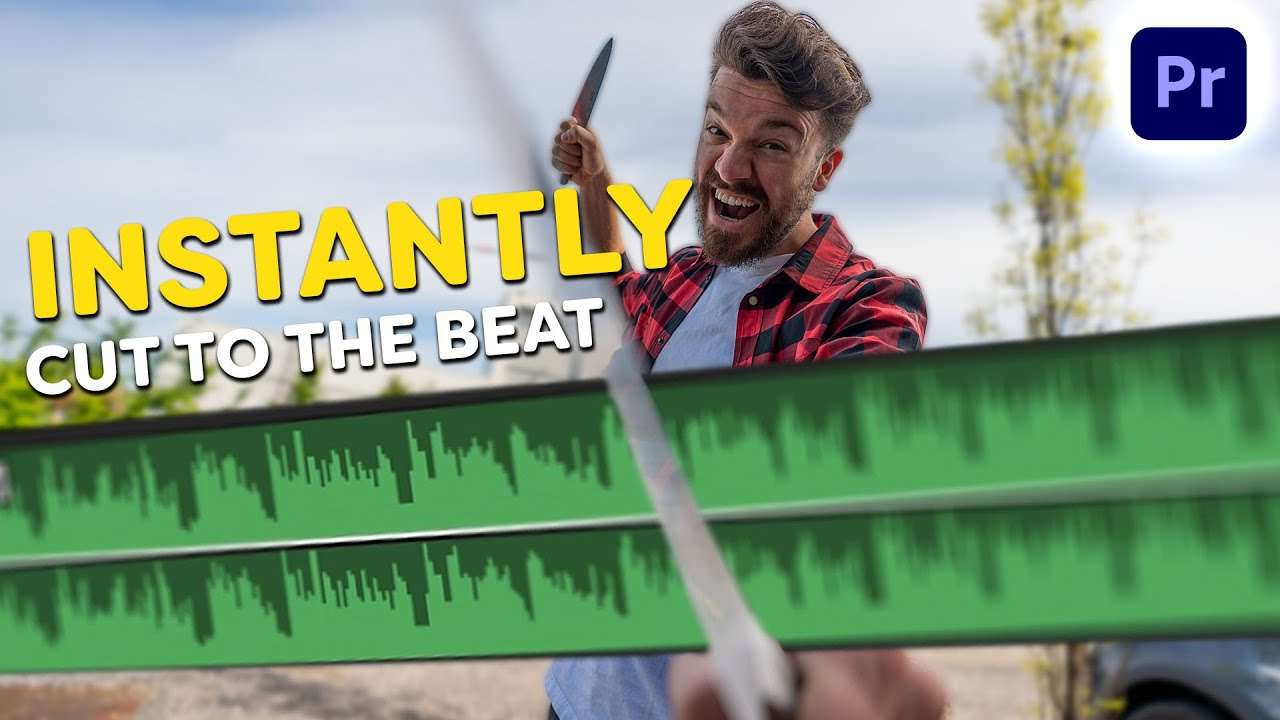
Learn how to instantly cut your footage to the beats of the music with one simple technique in this beginner tutorial in Adobe Premiere Pro.
Can you edit a video to the beat of music with just a click in adobe premiere pro?
Yes! It is possible and it's super simple.
First you need a song, which you can download from Audiio for example. Then drag it into the timeline and play it, place markers on each moment you want to make a cut in your video. You can simply do that by pressing the M-key. If that doesn't work, head over to the keyboard shortcuts menu and alter it there.
Next dive into your project panel, go through your footage and place an in- and outpoint for every clip. Then select your clips. You can either select them al together or do it selectively. This means that the first clip you select will also be the first one to be used in the timeline. Once done go to the clip menu and select automate sequence.
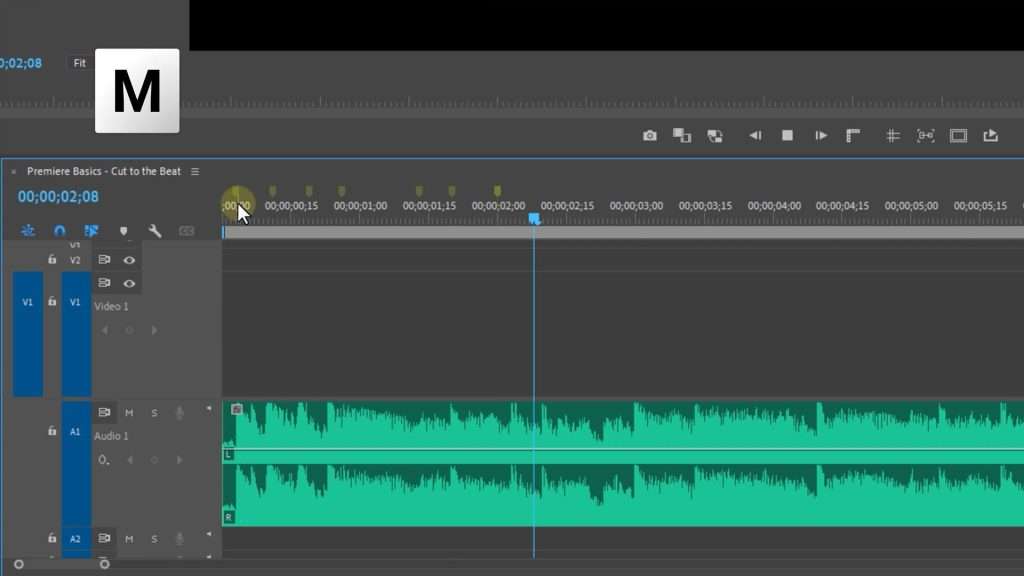
Then simply set the order to the selection order, the placing to unnumbered markers (which are your markers in the timeline). Place your playhead at the beginning of the timeline, set it to in and out point and hit okay. And it's done, simple as that. Your footage is now cut on every marker that you have placed in the timeline.
Jordy Vandeput
Founder of Cinecom · 2.75M+ subscribers on YouTube
Jordy Vandeput is a Belgian filmmaker who has taught practical filmmaking to millions through Cinecom. He breaks professional techniques down into clear, repeatable steps you can use on your very next project.
Related tutorials
 46K
8:17
4 Premiere Built-In Transitions That Replace Keyframes
Premiere built-in transitions can do the work of a stack of keyframes. I show four builds: a text reveal with Motion Camera, a Spin Motion logo animation, a TV turn on effect with TV Power, and lower thirds made from Fold Motion and Spring Motion.
 25K
6:11
How to Make a Superhero Landing in Premiere Pro
Learn how to make a superhero landing in Premiere Pro without After Effects. Cut yourself out with the Object Mask tool, drop in with the Transform effect, speed up the fall with a speed ramp and hit the ground with an earthquake from the Camera Shake effect.
 32K
4:30

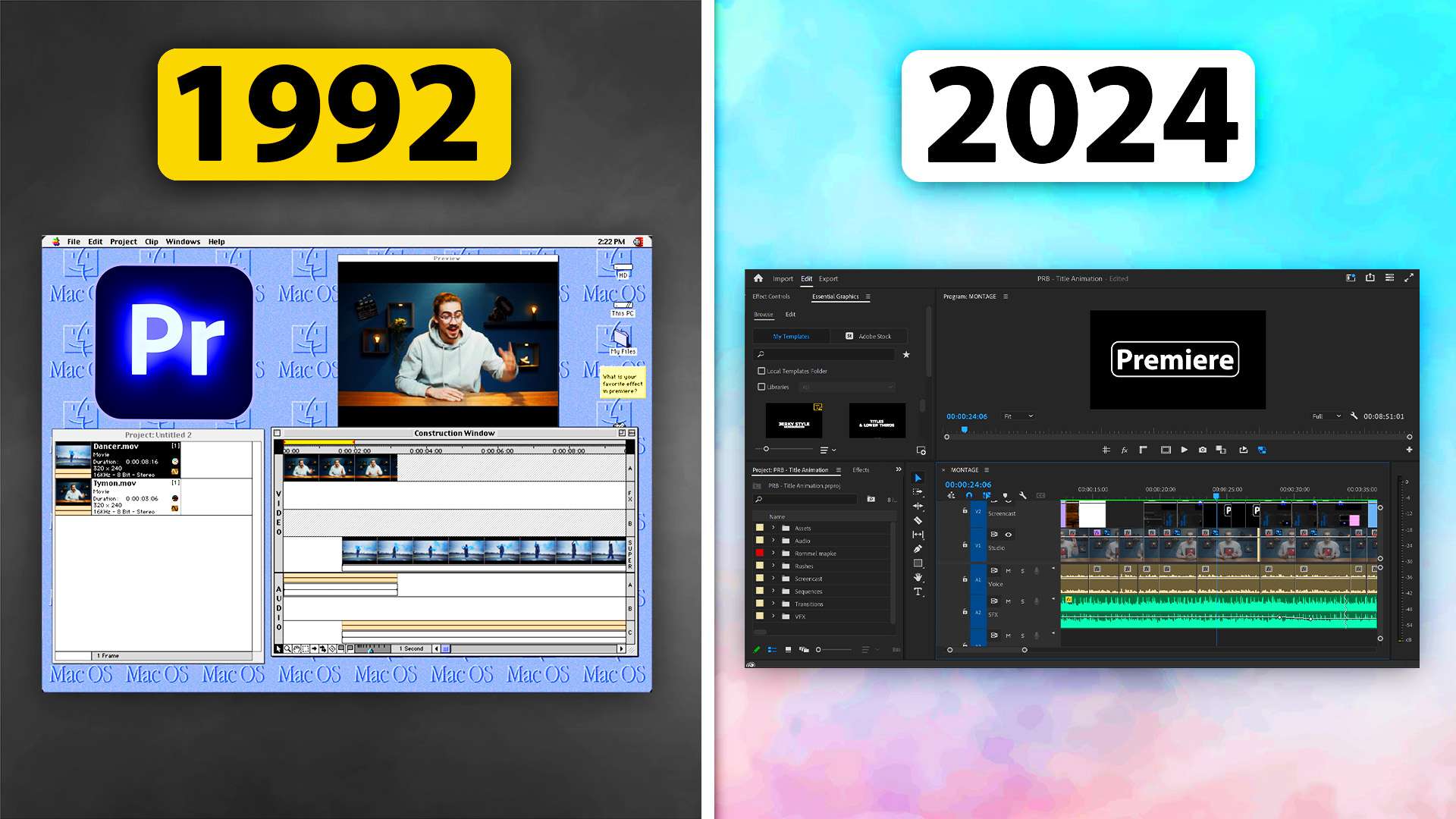
I Tried Editing In The FIRST PREMIERE EVER!
Learn 10 mind-blowing and interesting facts and a little bit of history about Premiere in this Adobe Premiere video!

0 comments