5 MIND-BLOWING Blending Effects (Premiere Pro Tutorial)
 Jordy Vandeput
400K views
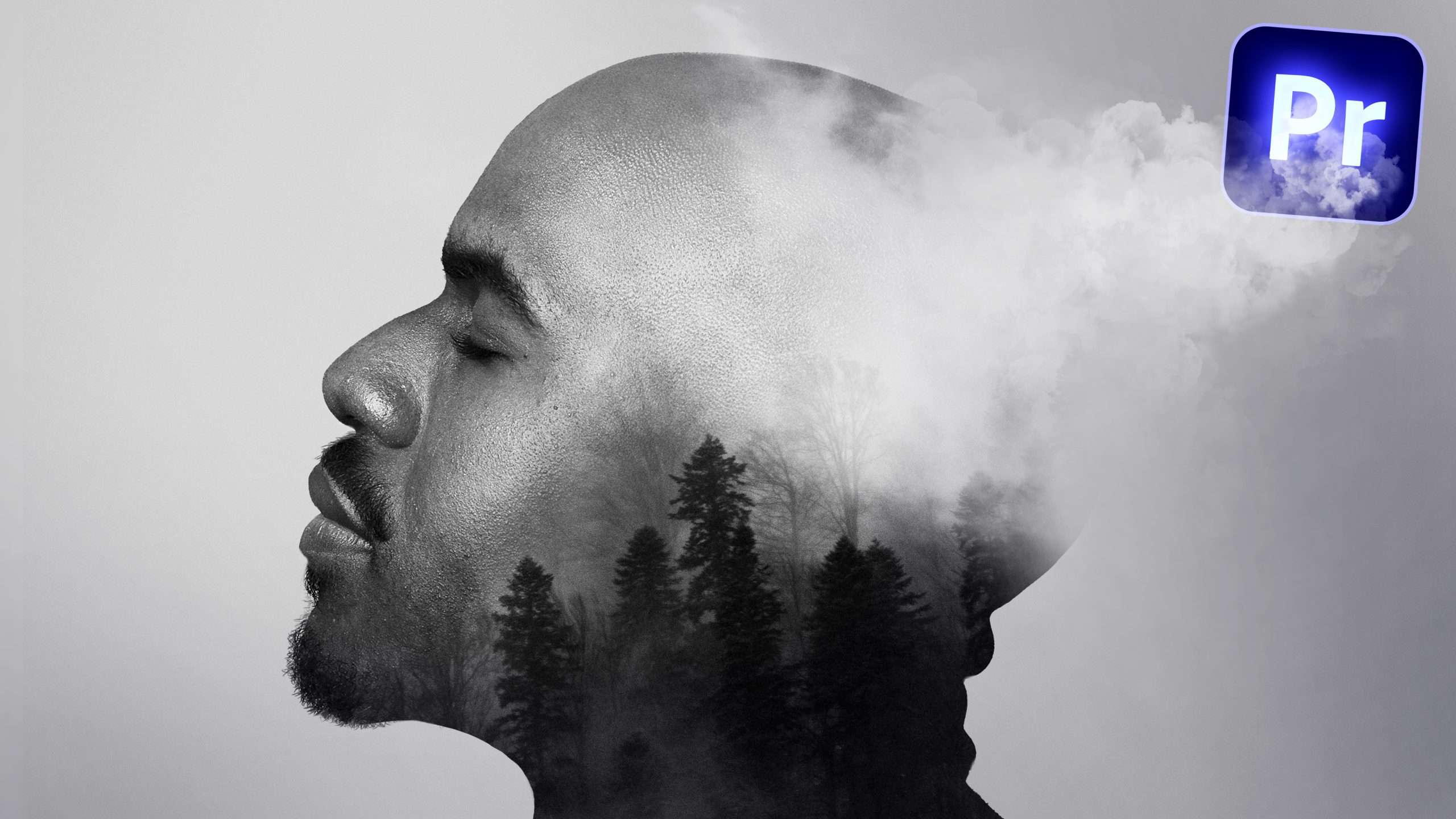
Learn how to create 5 blending effects to make your videos look so much better in this Adobe Premiere Pro tutorial video.
The best trick to learn blending in Premiere Pro
Blending modes can be extremely usefull to your videos. You can use it to create stunning effects in Adobe Premiere Pro. Blending modes scare a lot of video editors away at first. There are so many types of blend modes and that can be overwhelming! But don't you worry, I'm going to show the best way to learn how to use them extremely fast.
The secret is: exercise! By practicing blending modes you will get better at it in no time, which is why I will show you 5 blending effects in this tutorial! The first effect is a dreaming effect you can do on any clip. Simply duplicate your video on top of the original one and add a gaussian blur to the top video. Now set the blending mode of that video to screen and play around with the opacity.

Glowing dancer effect
This effect is extremely simple to create. Duplicate your video on top of the original one, then go to the effects controls and set the blend mode to difference. Go back to the timeline and offset the first clip by a few frames. Now you can see the glow already. Next, move the clips one track up and duplicate the bottom video. Then select the top two clips and put them in a nested sequence. Set the blending mode of that nested sequence to screen and that's it! If you wanna enhance this effect even more, add the VR glow effect to the nested sequence and mess with the settings.
Storyblocks
Thank you so much Storyblocks for sponsoring this video. Download unlimited 4K assets to level up your videos on Storyblocks!
Jordy Vandeput
Founder of Cinecom · 2.75M+ subscribers on YouTube
Jordy Vandeput is a Belgian filmmaker who has taught practical filmmaking to millions through Cinecom. He breaks professional techniques down into clear, repeatable steps you can use on your very next project.
Related tutorials
 49K
7:58
How to Make a Glowing Logo in Premiere Pro (With Light Rays)
Make a glowing logo in Premiere Pro with the Film Impact effects that now ship with Premiere: Volumetric Rays, Glint and Wonder Glow, animated with 3D Rotate. Plus the effect order trick that makes the light react to the movement, and two editing tricks I use every day.
 50K
8:17
4 Premiere Built-In Transitions That Replace Keyframes
Premiere built-in transitions can do the work of a stack of keyframes. I show four builds: a text reveal with Motion Camera, a Spin Motion logo animation, a TV turn on effect with TV Power, and lower thirds made from Fold Motion and Spring Motion.
 26K
6:11
How to Make a Superhero Landing in Premiere Pro
Learn how to make a superhero landing in Premiere Pro without After Effects. Cut yourself out with the Object Mask tool, drop in with the Transform effect, speed up the fall with a speed ramp and hit the ground with an earthquake from the Camera Shake effect.
0 comments