Turn BORING Images into 3D ANIMATIONS (Premiere Pro Tutorial)
 Jordy Vandeput
60K views
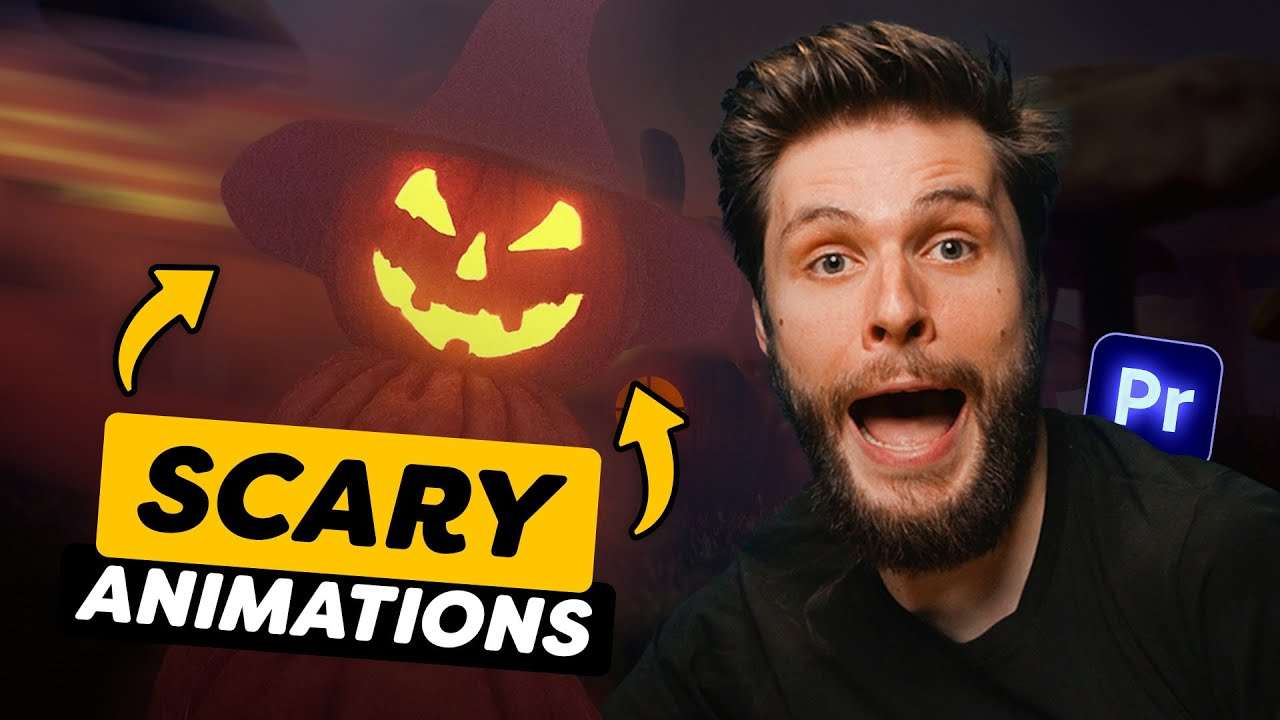
Learn how to create a creepy halloween animation by animating 2D pictures in this Adobe Premiere Pro tutorial video.
Happy halloween!
Today we're doing a special video because it's my favourite time of the year, Halloween! If you guys are as excited as I am, defenitely follow along with this tutorial!
All you need are two images. I found these two pictures on the internet and thought they would be really cool to turn into an animation. What I want to do is put the pumpkin-man inside the other world.


Masking in Adobe Premiere Pro
We all love a good hour of non stop masking, am I right? Ew! Good thing you don't have to do that! The only thing we need to mask out is our pumpkin guy. Try to do this as precisely as possible to achieve te best result.
After you're done masking, simply position him to your liking. To make it a 3D animation, we're going to use the Basic 3D effect on the background. Simply animate the swivel and look at that! That's truly amazing!

Storyblocks
Big thanks to Storyblocks for the support! Download unlimited stock assets here!
Jordy Vandeput
Founder of Cinecom · 2.75M+ subscribers on YouTube
Jordy Vandeput is a Belgian filmmaker who has taught practical filmmaking to millions through Cinecom. He breaks professional techniques down into clear, repeatable steps you can use on your very next project.
Related tutorials
 49K
7:58
How to Make a Glowing Logo in Premiere Pro (With Light Rays)
Make a glowing logo in Premiere Pro with the Film Impact effects that now ship with Premiere: Volumetric Rays, Glint and Wonder Glow, animated with 3D Rotate. Plus the effect order trick that makes the light react to the movement, and two editing tricks I use every day.
 50K
8:17
4 Premiere Built-In Transitions That Replace Keyframes
Premiere built-in transitions can do the work of a stack of keyframes. I show four builds: a text reveal with Motion Camera, a Spin Motion logo animation, a TV turn on effect with TV Power, and lower thirds made from Fold Motion and Spring Motion.
 26K
6:11
How to Make a Superhero Landing in Premiere Pro
Learn how to make a superhero landing in Premiere Pro without After Effects. Cut yourself out with the Object Mask tool, drop in with the Transform effect, speed up the fall with a speed ramp and hit the ground with an earthquake from the Camera Shake effect.
0 comments