Super Speed Dash Effect inspired by Anime (After Effects)
 Jordy Vandeput
688K views
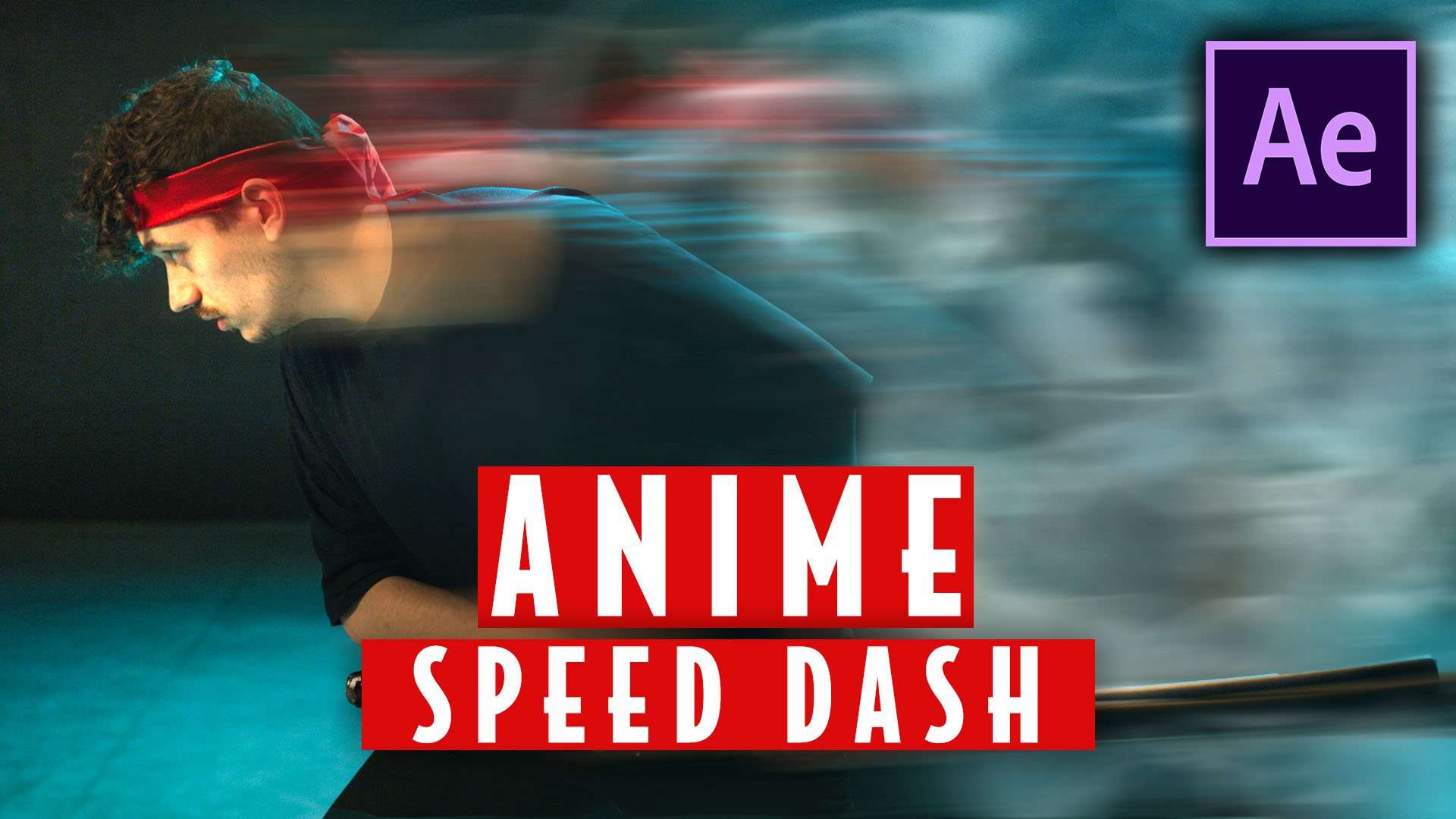
Create a Super Speed Dash effect like Anime Super Heroes in this Adobe After Effects tutorial. Learn how to use the Roughen Edges, Turbulent Displace and Venetian Blinds effects.
Anime Inspiration
If you know anime then you know exactly what we are recreating today! We at Cinecom love our self a good anime series so we wanted to create the famous anime dash. But if you don't know what I'm talking about don't worry I'll explain! Whenever someone is able to move super fast they enhance it by creating these after images of them as you can see in the example below.
How to make the Speed Dash
To create this effect you'll need to combine 3 effects in Adobe After Effects.
The first one is Venetian Blinds. This effect will reveal a underlying layer by animating the top layer away with multiple strips. This effect basically works just as the blinds you have at home. Second one is Roughen edges. This effect as the name implies will roughen the layer. It will give your image a rougher look. And last but not least is the Turbulent Displace. This effect will use fractical noise to create distortion in the image which results in a wavy type of displacement.
StoryBlocks Video
This video was supported by Storyblocks Video, an easy to use site full of stock footage, After Effects templates, backgrounds, motion Graphics and much more.
Jordy Vandeput
Founder of Cinecom · 2.75M+ subscribers on YouTube
Jordy Vandeput is a Belgian filmmaker who has taught practical filmmaking to millions through Cinecom. He breaks professional techniques down into clear, repeatable steps you can use on your very next project.
Related tutorials
 46K
4:43
After Effects 27 New Features: AI Assistant, Contour Paint and More
The After Effects 27 new features, tested hands-on in the beta: the AI Assistant builds a wiggle with its own sliders and organizes your project, Contour Paint turns footage into a painting, and five smaller updates save you clicks every day.
 179K
6:18
This New After Effects Update is Insane!
Learn how to use the newest 3D Beta feature from Adobe After Effects in this tutorial. Creating realistic renders has never been easier.
 61K
10:14

Is the NEW Rotobrush 3.0 Actually Better?
I tried out the new Rotobrush 3.0 In Adobe After Effects. Find out together with me if this new tool is worth it.
1 comment
Cool!